Quick answer
A full-time work-from-home setup in the Philippines needs a stable main internet line, a backup connection on a different network, backup power for brownouts, a computer that runs your tools and a video call together, a noise-cutting headset, and a quiet corner for your whole shift. Add a simple, tested plan for outages.
Key takeaways
- Put your backup internet on a different network from your main line, so one outage doesn't take out both.
- Backup power only needs to keep your router and computer running long enough to save your work or switch.
- A headset with a noise-cutting microphone is the single best upgrade for client calls.
- Write a short plan for when something breaks, and test it once before your first shift.
- At StaffRight you can apply before your backups are ready: tell us in the form, and you'll have about 2 weeks to get them.
Looking for a long-term remote role? Applying takes about 10 minutes.
See open rolesA full-time remote job runs on two things: you, and your setup. Clients in the US can't see your desk, but they notice right away when a call drops or a deadline slips because the power went out.
The good news: a reliable work-from-home setup in the Philippines doesn't need to be expensive. It needs to be planned. Brownouts, slow internet, typhoons and noisy neighbors are part of life here. A good setup means they don't stop your shift. Use this checklist before you apply, and again before your first day.
StaffRight places full-time, long-term remote professionals with US small businesses, mostly from the Philippines and Latin America. Planning to apply soon? Our open roles list the hours and must-haves for each role, and you can apply before every backup is in place.
What does a work-from-home setup in the Philippines need?
Here's the whole checklist at a glance. Each item is explained below.
| Item | Why it matters | What to aim for |
|---|---|---|
| Main internet | Calls, cloud tools and shared files all depend on it | A wired or fiber line, cabled to your computer if you can |
| Backup internet | Your main line will go down at some point | A pocket WiFi or mobile data on a different network |
| Backup power | Brownouts happen, often at night | Enough power for your router and computer to keep working or save and switch |
| Computer | You'll run several tools at once | Work tools and a video call together without freezing |
| Headset | Clients need to hear you clearly | A noise-cutting microphone |
| Webcam | Interviews and team calls | Built in or separate |
| Quiet space | Focus and calls | A corner you can use for your whole shift |
| A plan | Problems don't wait for daytime | Written steps for outages, tested once |
1. Main internet
- A wired or fiber connection is the most stable for full-time work.
- Use a cable to your computer if you can. WiFi through walls can drop during calls.
- Test it at the hours you'll work. For US clients, that's late at night in Manila. Run a long video call at that time before you rely on it.
- Know your provider's support number and how to report an outage quickly.
2. Backup internet
Your main line will go down at some point. When it does, you need to be back online in minutes.
- A pocket WiFi or mobile data on a different network from your main line. If your fiber and your mobile data come from the same provider, one outage can hit both.
- Keep it charged and loaded before every shift, with enough data for a full shift of calls.
- Know where the signal is strongest in your home. Sometimes it's a window, not your desk.
- Test the switch once, so you know how long it takes.
3. Backup power for brownouts
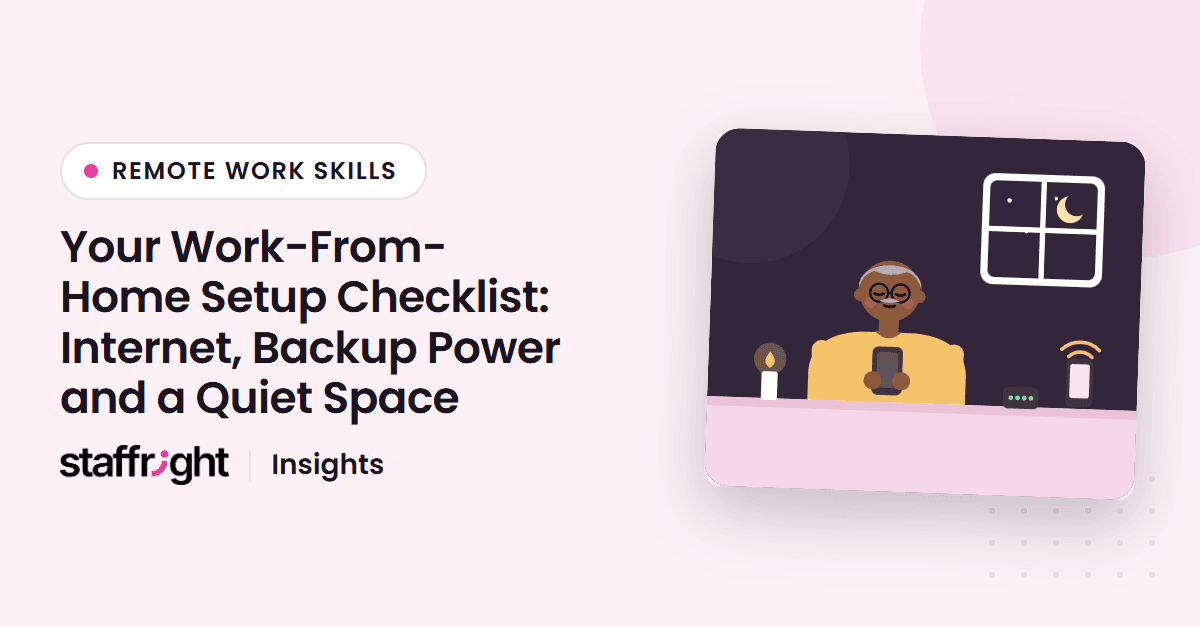
- A power bank that can run your router keeps your internet up during a short brownout. Check that your router can run from it before you need it.
- A UPS (uninterruptible power supply) is a battery unit that sits between the wall and your desktop computer. When the power cuts out, it gives you time to save your work and keep going.
- A laptop with a healthy battery is the simplest backup of all.
- Know your area's schedule. Check your electric provider's page for planned interruptions, and tell your client in advance.
- For areas with long outages, some professionals add a portable power station or a small generator. Work out what you need to power and for how long.
4. Computer, headset and webcam
- A computer that runs your work tools and a video call at the same time without freezing. A laptop works well, because it has its own battery.
- A headset with a microphone that cuts background noise. It's the single best upgrade for client calls.
- A webcam, built in or separate, for interviews and team calls.
- Keep everything updated. Install system updates before your shift, not during it.
5. A quiet place to work
- A corner you can use for your whole shift, away from the TV and the kitchen.
- Let your household know your hours, especially if you work nights.
- A simple background for video calls. A plain wall is fine.
- Light from the front. A lamp or window behind your screen, not behind you.
- A chair you can sit in for a full shift, with your screen at about eye level.
6. Security and privacy basics
Your client trusts you with their data. Protect it like it's yours.
- Lock your screen whenever you step away.
- Use a separate browser profile for work, so client logins stay apart from your personal accounts.
- Keep client files in the client's own drive or tools, not in personal chat apps or on USB sticks.
- Use strong, unique passwords and turn on two-step verification.
- Don't share your work computer while you're logged in to client systems.
7. Your work routine
A setup isn't only equipment.
- Start 10 minutes early to check your connection and messages.
- Keep a short "if something breaks" plan (see below).
- Save work to the cloud so a crash doesn't cost you hours.
Your "if something breaks" plan
Write this down and keep it next to your desk.
If your internet drops:
- Switch to your backup connection.
- Message your client: what happened, and that you're back online.
- Report the outage to your provider.
- Carry on, and switch back when the main line returns.
If the power goes out:
- Your power bank or UPS keeps the router and computer running. Save your work.
- If the outage looks long, move to your laptop on battery and backup internet.
- Message your client with what you know and when you'll update them.
If a typhoon is coming:
- Check the forecast the day before.
- Charge everything: laptop, power banks, pocket WiFi, phone.
- Tell your client early, and agree what happens if you lose power for longer.
A quick example
Say you're on a 10 PM–7 AM Manila shift for a client on US Eastern time, and the power goes out at 2 AM. Your router is on a power bank and your laptop has a healthy battery, so you're still online. You save your work, send your client a two-line message ("Brownout here. I'm on backup power and still working, and I'll update you if that changes."), and keep going. The client barely notices. That's what a good setup buys you.
How to test your setup before day one
Run these checks once, ideally at night during your future shift hours:
- Make a long video call on your main line and watch for drops.
- Switch to your backup internet in the middle of a call, and time how long it takes.
- Unplug your router and check your power bank takes over.
- Run your work tools and a video call together.
- Record a short clip with your headset and listen back.
What if you don't have everything yet?
You can still apply. At StaffRight, if you don't have backup internet or power yet, tell us in the application form. You'll have about 2 weeks to get it before you start. Questions about your setup are part of the application, and applying takes about 10 minutes. Our guide to the StaffRight hiring process explains the other steps.
Once you're set up, the next challenge is the hours themselves. Our guide to working the night shift from home covers sleep, meals and focus, and our guide to your first 30 days with a new US client helps you start strong. If you're still exploring, start with our overview of virtual assistant jobs in the Philippines, or read how to become a virtual assistant in the Philippines.
Frequently asked questions
What internet speed do I need to work from home in the Philippines?
It depends on the role. Video calls and cloud tools need a stable connection more than a very fast one. The job post and your recruiter will tell you what the role needs, and you should test your line at night, during the hours you'll actually work.
Do I really need backup internet to work from home?
Yes. Outages happen, and a backup lets you finish your shift instead of losing it. Put your backup on a different network from your main line, so one problem doesn't take out both.
What backup power do I need for brownouts?
At minimum, enough to keep your router and computer running while you save your work or finish a call. A power bank that can run your router, plus a laptop with a healthy battery or a UPS for a desktop, covers most short brownouts.
Can I use a laptop for a full-time remote job?
Yes. A laptop is often the better choice in the Philippines, because its battery keeps you working through short brownouts. Make sure it runs your work tools and a video call at the same time without freezing.
Can I work from a coworking space instead of home?
Some people do. Make sure it's quiet enough for calls, has reliable internet, and is open during your shift, which for US clients is usually at night in the Philippines.
Do I need a separate room to work from home?
No. You need a quiet corner you can use for your whole shift, away from the TV and the kitchen, with a simple background for video calls. A headset that cuts background noise helps a lot in a shared home.
Can I apply to StaffRight before my backup internet and power are ready?
Yes. Tell us in the application form that you don't have backup internet or power yet. You'll have about 2 weeks to get it before you start.
Ready to take the next step?
Setup ready, or nearly there? See our open roles and apply in about 10 minutes. Each role lists its hours and must-haves, and we reply to every applicant within 3 business days. If nothing matches right now, leave your email in the "Get new roles first" box below, and we'll email you when a matching role opens. And if a friend has the skills and the setup, you can refer them.
Get new roles first
No role that fits today? Leave your email and we'll let you know when a matching role opens.